
Support Centre · Guided tour · Step 8 of 10
8. People on this application
4 min
By the end of this step
Everyone applying with you has their own checklist, and you have decided who may act for you.
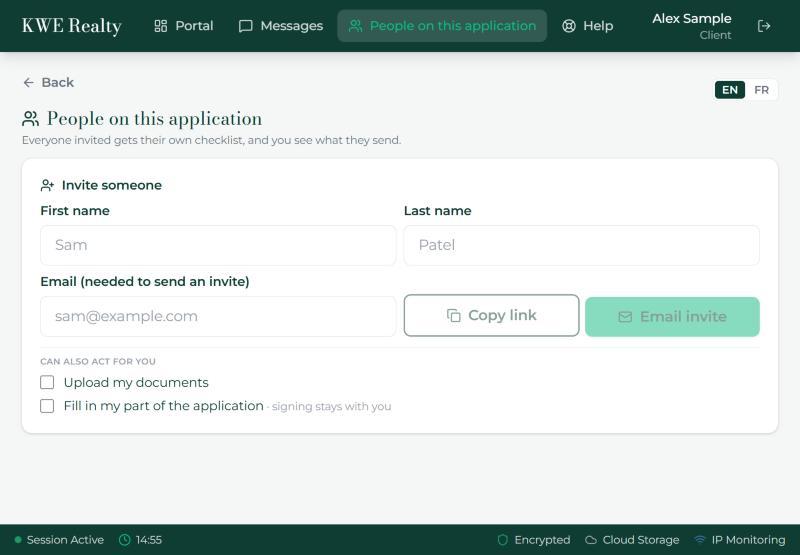
People on this application, in the top bar, is where you add the others applying with you: a partner, a roommate, a guarantor. Each one gets their own checklist and their own login, and you see what they send.
- Type their first name, last name and email. Email invite sends them the link; Copy link gives it to you to send yourself, by text for example.
- Pick what they are. A co-applicant shares the lease and the rent: they get their own checklist and their part of the application. An adult occupant is an adult who will live in the home but is not applying with their income, such as a grown child or a parent: no documents, and one email asks them to sign the credit check consent. Their row shows when they have.
- Under "Can also act for you" are two boxes. "Upload my documents" lets them put files on your rows. "Fill in my part of the application" lets them answer your sections of the form. Signing stays with you either way.
- Their row shows whether they have opened the link. Resending makes a new link and the old one stops working.
- Remove takes them off the application. Their documents are deleted with them, so do it only when you mean it.
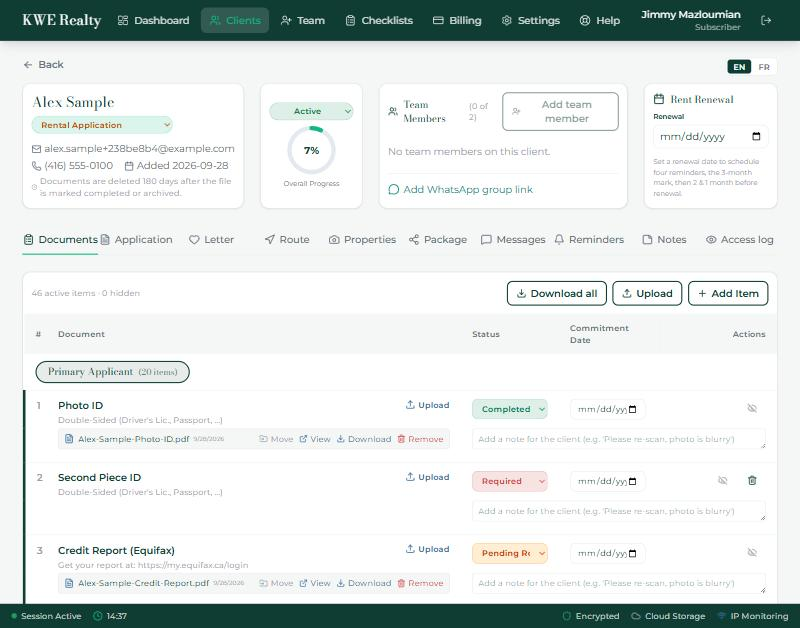
- Their items appear as a section of your Documents tab, so you can see at a glance what is still missing from them. You can also do their part for them: upload their documents there, and fill in their section of the application form.
What your agent sees
Your agent sees each co-applicant as a section of your Documents tab, with the same statuses, and their answers beside yours on the application. They have the same People box on their side: they can add someone you left out, fix a name or an email, change the order, remove someone, or tick the two boxes for you.
Still stuck? Write to support@getfoyernow.com