
Support Centre · Guided tour · Step 6 of 14
6. Documents: the checklist and your review
9 min
By the end of this step
You can review every file that arrives, ask for a better one, and shape the checklist your clients get.
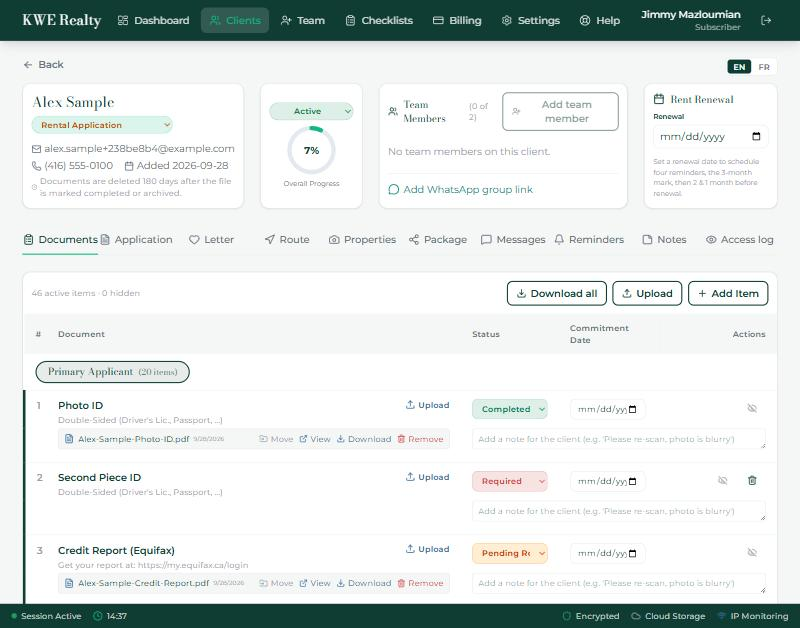
The Documents tab is the checklist as a table: one row per item, grouped by who it belongs to. The primary applicant’s items come first, then each co-applicant’s, then the Accepted Offer section everyone shares: the deposit instructions, the deposit, the lease, the insurance and the utility accounts. Every section, and Occupancy below them, starts closed; press a section’s name to open it.
Reading the statuses
- Required: nothing sent yet.
- Pending Review: a file is in and waiting for you.
- Completed: you marked it done. The renter can no longer open, replace or delete it.
- Incomplete: you sent it back; the renter sees your comment and uploads again.
Reviewing a file
- Press View under the file to open it. Every open is written to the access log.
- The status is the dropdown on the row. Set it to Completed if the file is right. If not, set it to Incomplete and type what is missing in the note box under the row; the renter gets an email and a text with your words. Leave the box empty and they are asked for a better copy of the document.
- A commitment date on a row tells the renter by when you need it, and shows on their checklist.
- Mark as many rows Completed as you like; the renter is not told for each one. When you leave the page, they get one email and one text saying how many documents were accepted. A note typed in the box under a row also appears in the Messages tab, linked to that document.
The other buttons
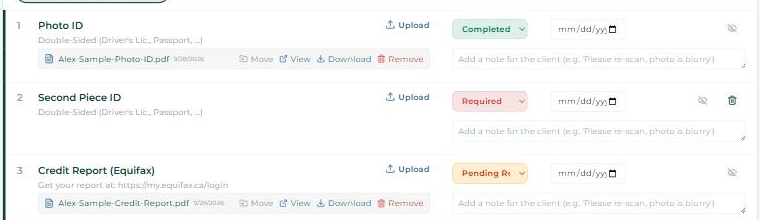
- Download under a file saves it; Download all at the top packs every completed document into one download. Team members get Download all only if you allow it in Settings, Team Permissions.
- Upload, on a row or at the top, puts files in for the client, for the papers they hand you in person: pick one or several at once (up to 10), all for the row you choose. On a computer you can also drag files from a folder and drop them on the row they belong to, or on the box at the top that says Drop the files here. Move puts a file on another row when it landed in the wrong one, in any section: the list is grouped by section with each person’s name, and rows still waiting for a file are marked. Remove deletes it. Add Item adds a row the standard list does not have, for this client only.
- The eye icon hides a row from the renter without deleting it, and the bin removes a row that has no file.
- Under the last section sits Occupancy, for move in day: Keys received and Key deposit given to tick, a photo of the key receipt, and photos of anything wrong with the place on the day the renter gets the keys. The renter and you can both fill it in. Under the photos, on their side only, the renter can tick that they would take care of the problems and invoice the landlord; you see that tick in the Share Package tab, and step 10 sends the photos to the listing side.
Deposit instructions
- The first row of Accepted Offer, Deposit Instructions, is yours to upload, not the renter’s. Once the offer is accepted, put in the page from the listing side that says how, where and by when the deposit is to be paid. The row turns Completed by itself, and the renter gets an email and a text that moment, with a button to open it, since the deadline is usually a day or two away. The page stays out of the deposit package.
The templates
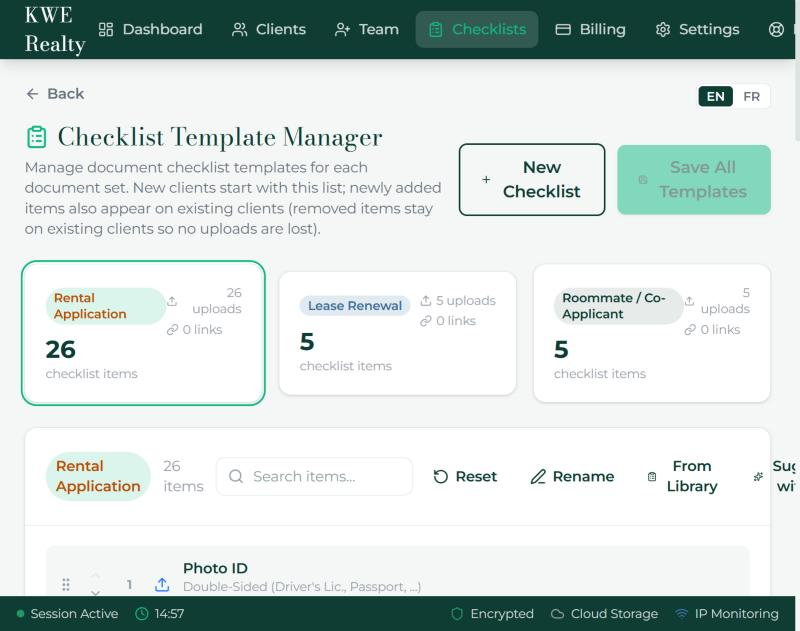
- The Checklists page in the top bar holds your brokerage’s templates, one per document set. Add, rename or remove items there and every new client gets the new list; existing clients pick up new items the next time their page opens.
What the renter sees
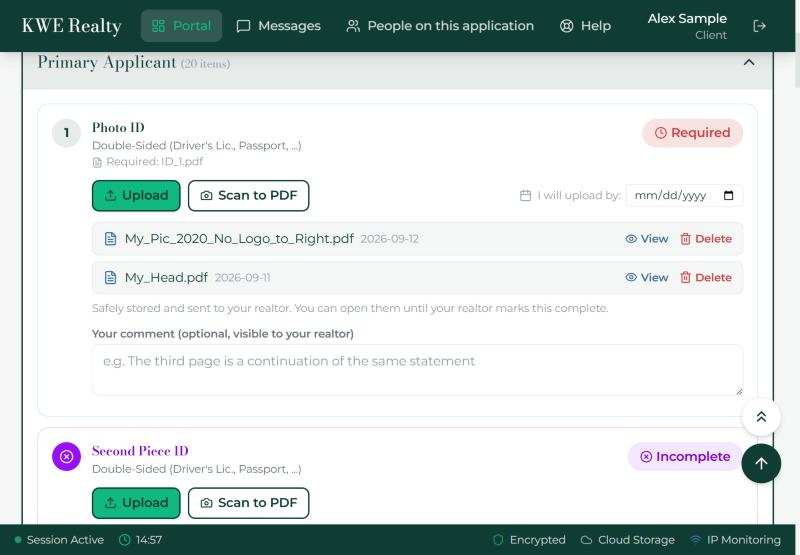
Their Documents tab lists the same rows with the same statuses. Each row has an upload button; on a phone it opens the camera. A file you marked Completed shows a lock, and they get one text and one email for the batch once you leave the page. A row you sent back shows your comment in a coloured box with an upload button under it, and your words reach them by email and by text. The progress line at the top of their page says how many are in and what is next.
Still stuck? Write to support@getfoyernow.com