
Support Centre · Guided tour · Step 7 of 14
7. The rental application
6 min
By the end of this step
You can read an application, finish one on a client’s behalf, and print it the way a landlord expects.
The Rental Application tab shows the application as the renter has it so far: personal details, employment and income, assets and liabilities, properties they own if any, co-applicants, and the privacy consent with a typed signature.
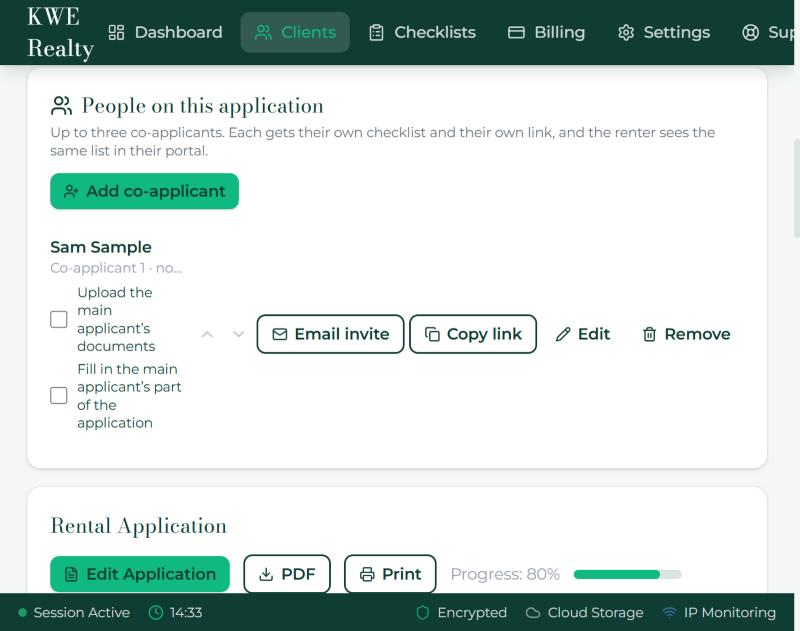
- The application saves as the renter types, so what you see is always current. Fields you made required in Settings carry a red asterisk.
- To finish it for a client who is on the phone with you, open the application on their behalf. A banner at the top says whose application you are editing; your changes save the same way and the renter sees them.
- People on this application, at the top of the tab, is where you add a co-applicant the renter left out, correct a name or an email address, send or copy their link, change the order, or remove someone. Press Add co-applicant, type the first name, last name and email, and choose what they are: a co-applicant, who shares the lease and the rent and gets their own checklist, or an adult occupant, who will live there without applying with their income, where one email asks for their consent signature and no checklist is made. A consent request can go out later with the Send later box. Removing a person deletes their answers and their documents.
- Under May also act for the main applicant are two boxes on each person: Upload the main applicant’s documents, and Fill in the main applicant’s part of the application. Tick them for a partner who handles the paperwork for both; the signature stays with the main applicant. The renter sees the same boxes on their side and can change them.
- Once an application is submitted, every later change the renter makes sends you a text and an email, so you know to look again before the offer goes in.
- Download the application as a PDF, with page numbers. Choose who to print when there are co-applicants, and the sections ticked in Settings, Print Report decide what goes on the page.
- A former employer is asked for only when the current job is under three years old. The Social Insurance Number is never asked for.
What the renter sees
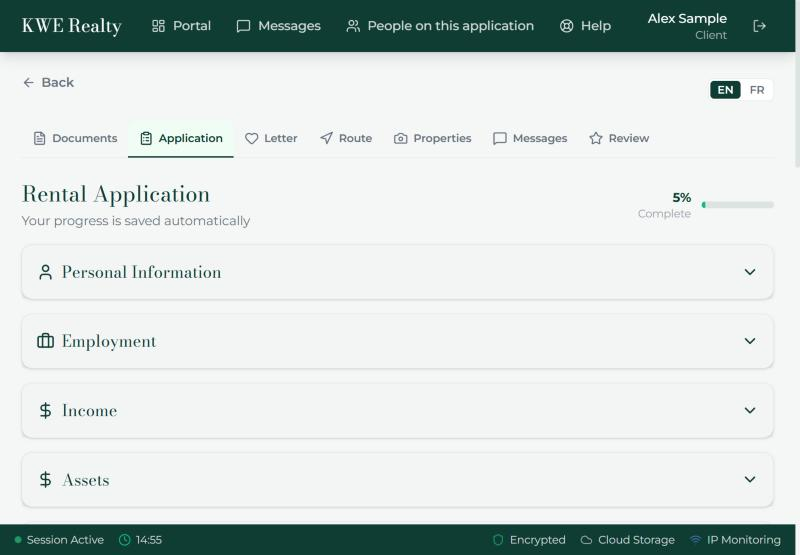
Their Application tab is the form itself, in sections they can open one at a time, with a progress bar and "Saved" after each change. Required fields show the asterisk. At the end they read the consent, type their name as a signature and submit; you are emailed when they do.
Still stuck? Write to support@getfoyernow.com