
Support Centre · Guided tour · Step 3 of 10
3. The rental application
5 min
By the end of this step
You can fill in the application at your own pace and submit it when it is complete.
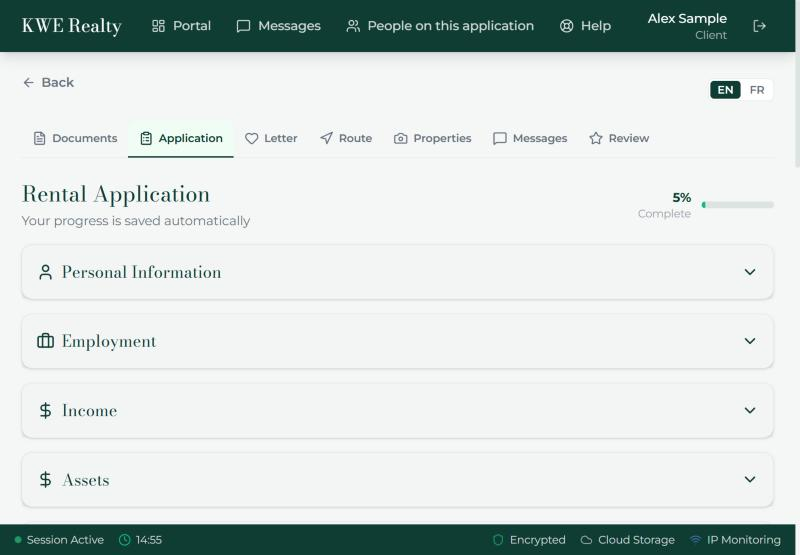
The Application tab is the rental application itself, the form a landlord reads to decide. It is split into sections you open one at a time: personal information, employment, income, assets, liabilities, owned properties, the people applying with you, privacy and consent, and who referred you.
- Open a section, fill in what you know and close it. Everything saves as you type; the line under the title says so, and the bar at the top right shows how much is done.
- Fields with a red asterisk are the ones your agent needs before you can submit. The others can wait.
- If someone is applying with you, they fill in their own part from their own login. Yours stays yours, unless you ticked "Fill in my part of the application" for them in step 8; then they can answer your sections too, and the signature still stays with you.
- At the end, read the consent, type your name as your signature and press Submit Application. Your agent is emailed at once.
- After submitting you can still open the form and correct something. Your agent sees the latest version and is told of each change by email and by text, so nothing you fix goes unnoticed.
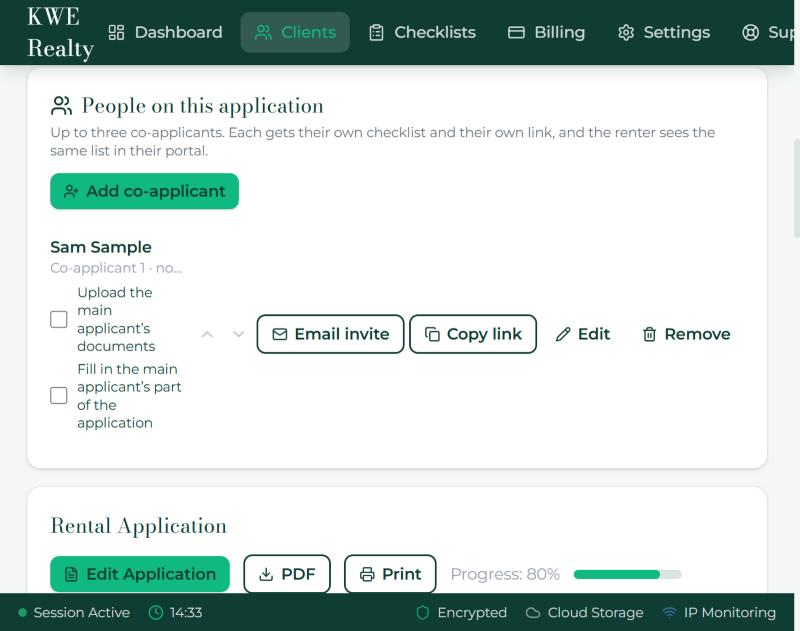
What your agent sees
Your agent reads your answers on the Application tab of your file, with any co-applicant’s answers beside yours, and can save the whole thing as a PDF for the landlord. They can also fill in a section for you while you are on the phone together.
Still stuck? Write to support@getfoyernow.com