
Support Centre · Guided tour · Step 8 of 14
8. The letter to the landlord
4 min
By the end of this step
You can turn a renter’s answers into a letter, polish it, and hand it over as a PDF.
Landlords choose people, not only numbers. The Sweetheart Letter tab turns a renter’s own words into a one-page letter that goes to the landlord with the offer.
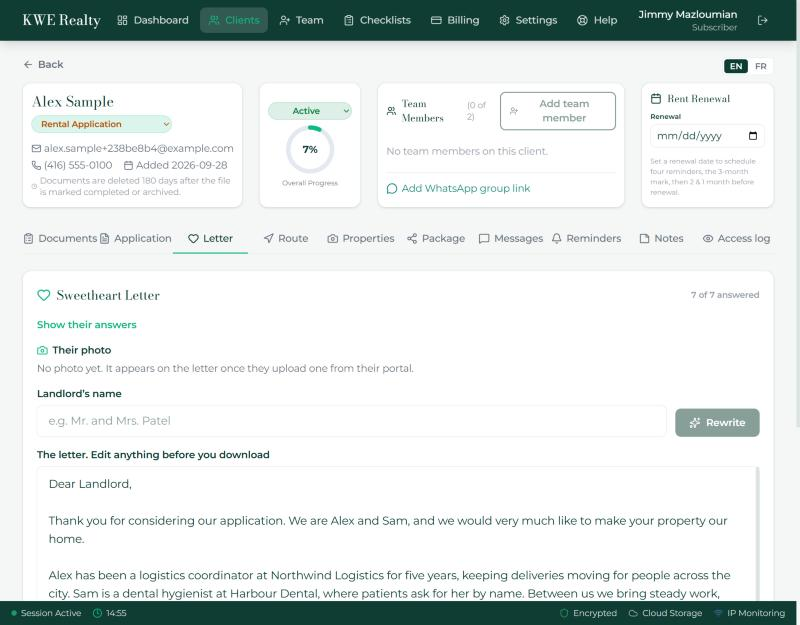
- The renter answers seven short questions in their portal, in point form, typed or dictated with the microphone under each answer, and each applicant can add their own comments. They may add a photo of themselves, or you can press Upload a photo and add it for them.
- Enter the landlord’s name and press Write the letter. Foyer writes it from their answers, in their words and under their names. Read it and edit anything you like in the box. Your edits save on their own, and the package sends the letter as you left it.
- Download the letter as a PDF. It is laid out like a letter, with the photo framed at the top right, and it goes in the application package in step 10.
- Already have a letter, from the renter or written elsewhere? Press Upload a letter and choose a PDF, JPG or PNG. It goes in the package in place of the written one.
- The letter is written by an AI model, and the text is not used to train it. Nothing is sent to the landlord until you send the package.
What the renter sees
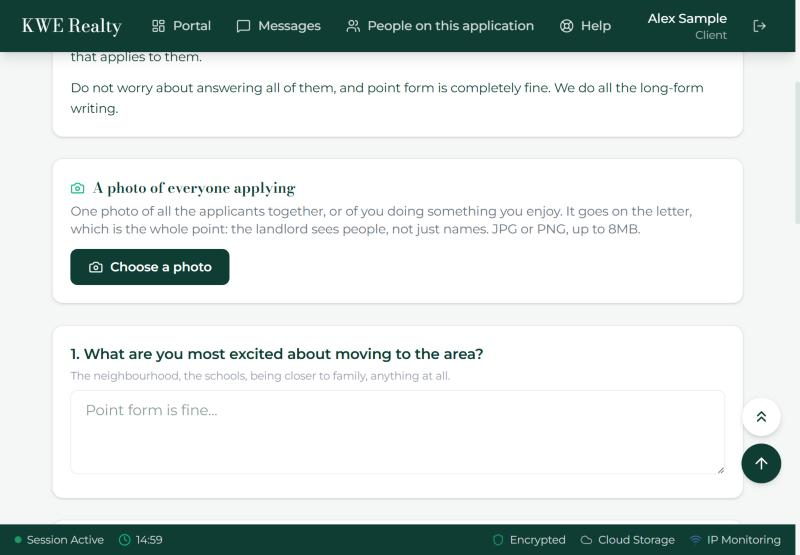
Their Letter tab has the seven questions with a box under each, a Dictate your answer button under the box, a progress count, and a place for a photo. They write or speak in point form; the letter is your side of the work.
Still stuck? Write to support@getfoyernow.com